


New article
Recently updated
Generating a DLP log file for support

Who is this article for?Customer that need to provide a DLP log for support.
Standard user permissions.
Follow these steps to generate a DLP log file whilst reproducing the issue, then save the log file and send it to us to analyse.
Generating the log
To generate a DLP log file:
- Close the application.
- Open the DLP (Digital Logging Program) from your system tray.
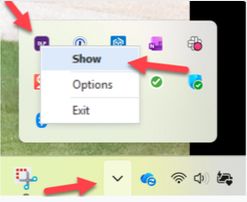
- In the DLP logging program, select the Live Logging tab.
- Tick Show Info.
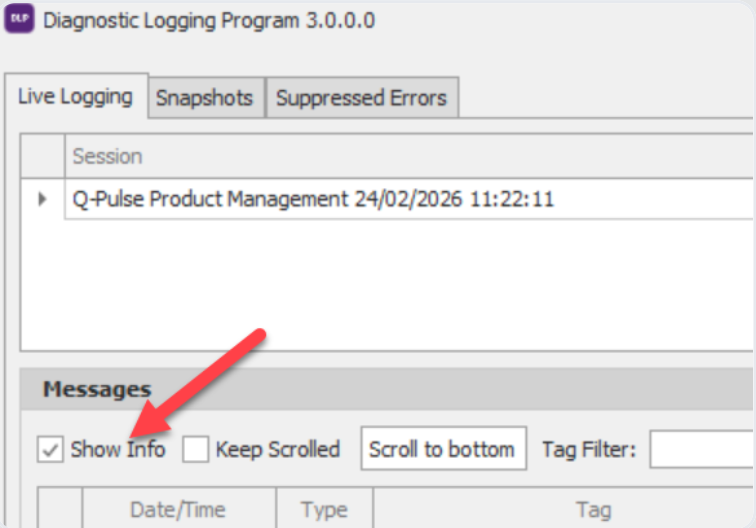
- Reproduce the issue in Ideagen Quality Control Pluri Pluri (for example, open the impacted part) so it is captured in the log.
- Back in the DLP program, click Take Snapshot.
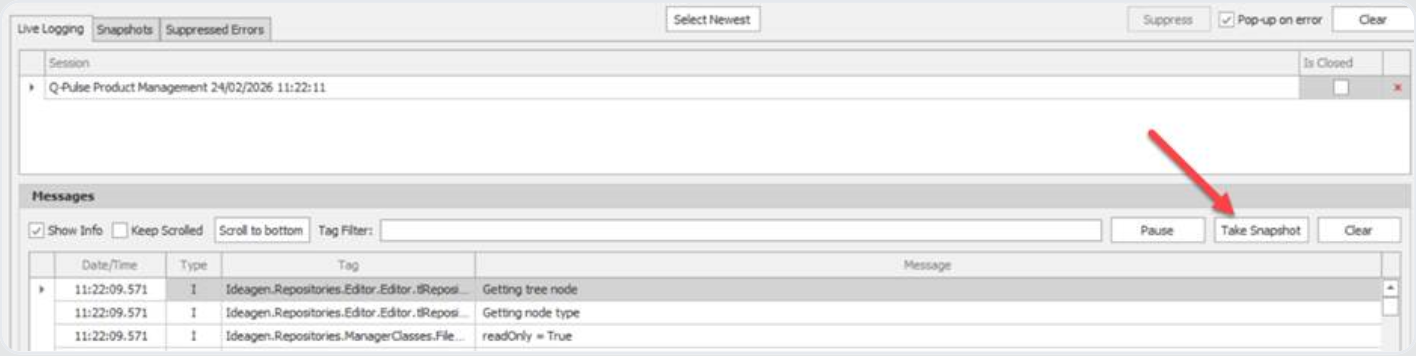
- Open the Snapshots tab.
- Click Create Log File.
- Save the file and send it to us to analyse.

Prefer to watch it done? Here is a short walkthrough video: https://share.vidyard.com/watch/UCWdCLcvxkg1kgXxohQvz7